① Getting Started — Build Your First Rack
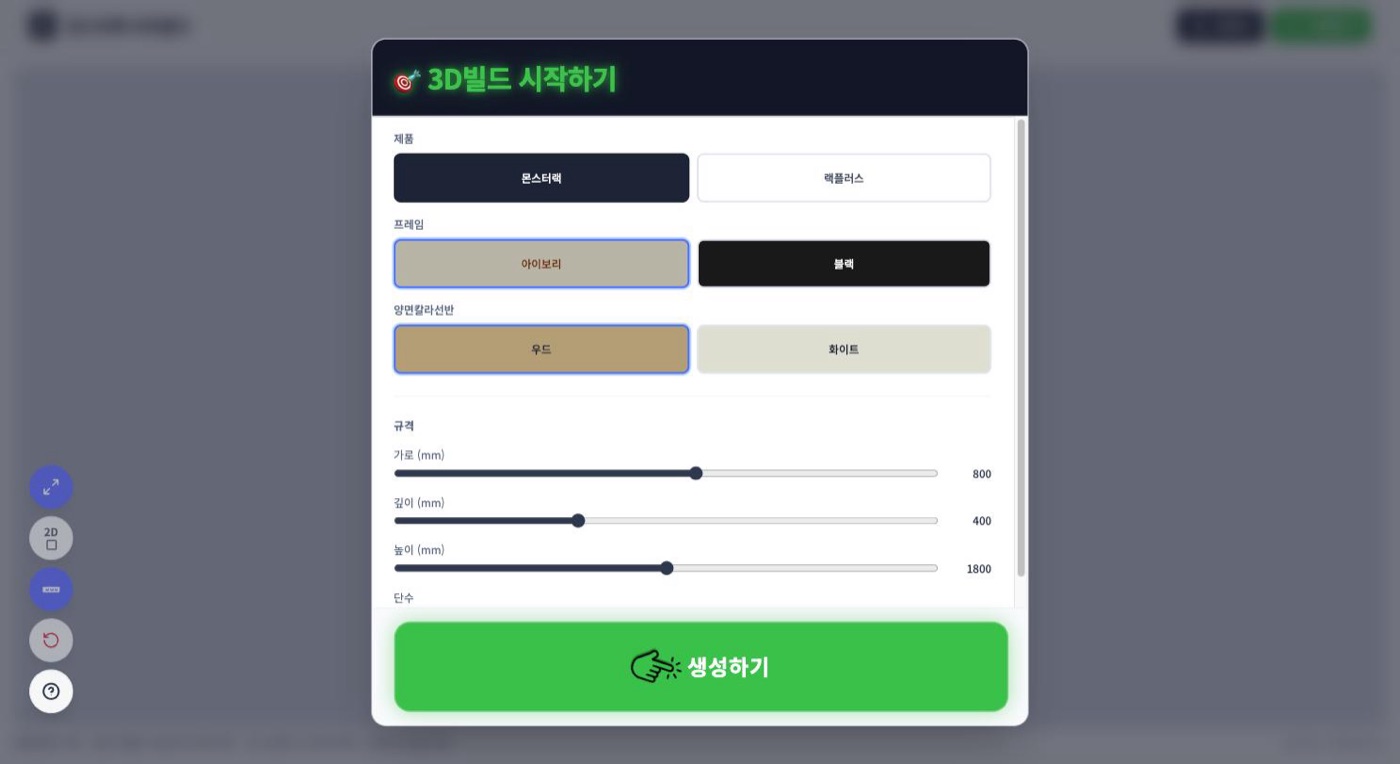
Open mr.sangdogagu.kr and the Start 3D Build window appears first. Set just the basic size here — everything else can be changed freely on the 3D canvas.
Choose product and color
- Product — choose Monster Rack or Rack Plus.
- Frame — Ivory or Black.
- Dual-color shelf — Wood or White.
Set the size
Use the sliders to set Width × Depth × Height (mm) and the number of tiers. For example, choosing W800 × D400 × H1800 creates a 3-tier rack by default. You can fine-tune the exact dimensions anytime, so an approximate size is fine to start.
Create
Press Create and your first rack appears on the 3D canvas. The layout works like this.
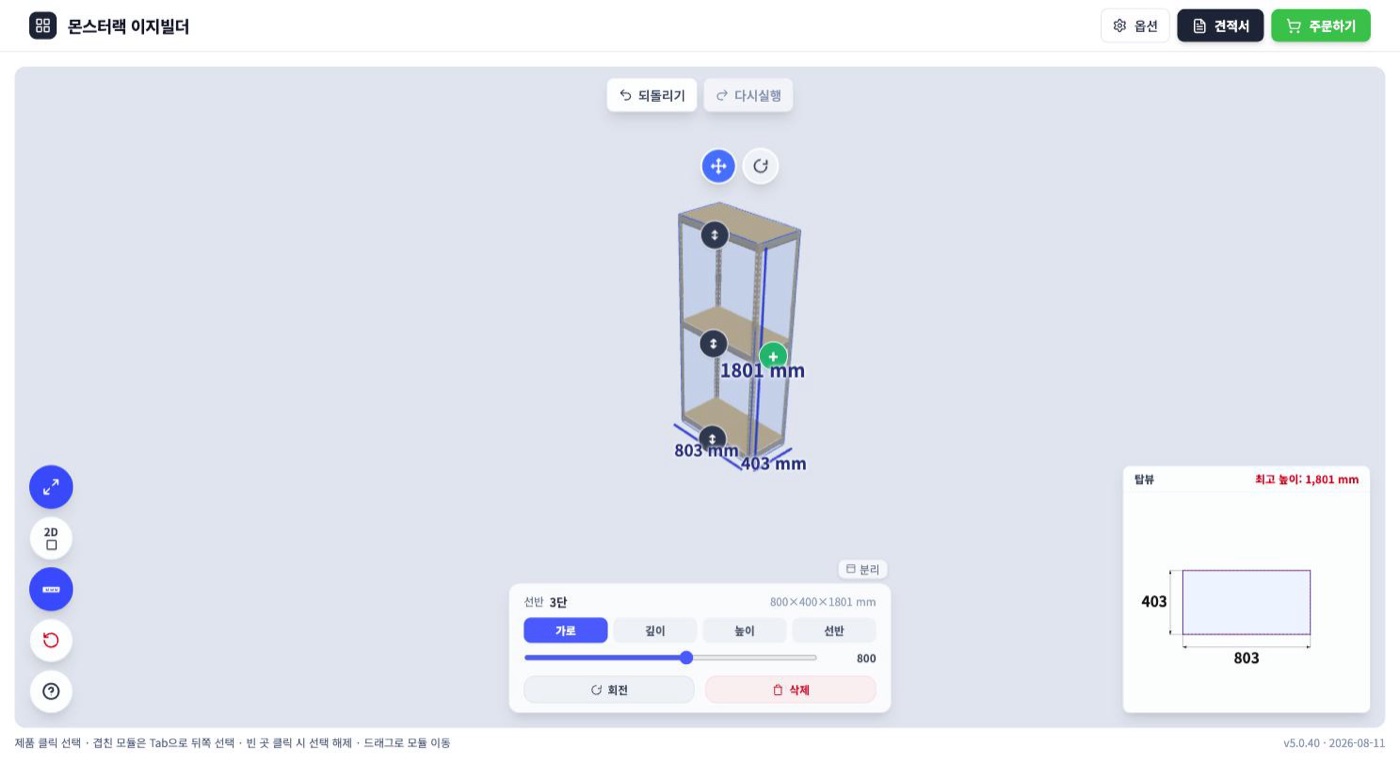
- Top — Options · Quote · Order buttons.
- Bottom edit panel — change the selected module's width, depth, height, and shelves.
- Left tools — fullscreen · 2D view · show dimensions · undo · help.
- Lower-right top view — the layout seen from above and the overall size.
💡 Drag with the mouse to rotate the view, and click empty space to deselect. If you make a mistake, press Undo at the top.